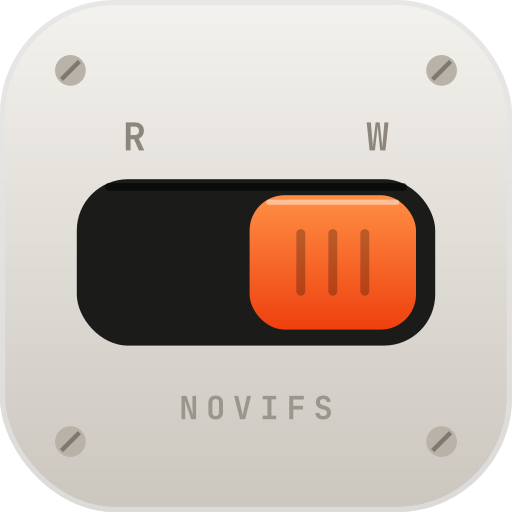
What every Mac does on its own: you can open files on the drive, but not change anything.
How it works
From plug-in to WRITE in about a minute.
Four short steps the first time. After that, you just plug in your drive.
- 01
Install
Open the download and drag NoviFS into Applications. Open it from there. It's a normal Mac app: signed, notarized and checked by Apple.
- 02
Switch on NoviFS File System, once
macOS asks you to allow new file systems one time. NoviFS opens the right page in System Settings, points at the switch, and notices by itself when it's on. If the switch snaps back off, the By Category view fixes it.
The exact clicks for your macOS → - 03
Activate
Paste the license key from your purchase. Without one, NoviFS still shows your drives, read-only.
- 04
Plug in and write
Your NTFS drive appears with the big switch on WRITE. Use it in Finder and every app as usual, then eject it before unplugging.
Under the hood
Apple’s way, not a workaround.
NoviFS plugs into FSKit, the framework Apple built for file systems that run like normal apps. That’s why there’s no kernel extension, no macFUSE and nothing to change in Recovery mode.
- Finder & appsYou copy, save, rename
- macOSHands the drive to its file system
- FSKitApple's file-system framework
- NoviFS File SystemNTFS-3G engine inside
- Your NTFS driveUSB, SSD, SD card
You stay in control
Read-only until you say so.
NoviFS has the drive, but writing is off: before you activate, or when you flip a drive to READ yourself.
Full access. Create, edit, rename and delete, in Finder and every app.
Works with
NTFS hard drives and SSDs (USB and Thunderbolt), USB sticks and SD cards, on any Mac running macOS 15.4 or later.
Already fine without NoviFS
exFAT and FAT32 drives: every Mac reads and writes those on its own.